What It Is
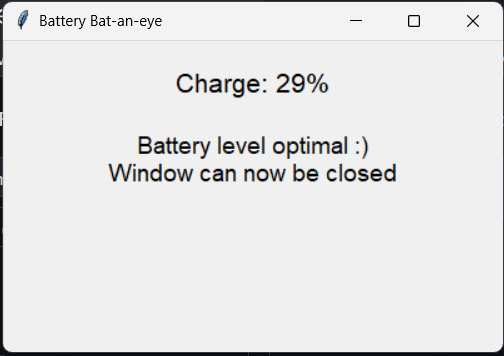
This is a battery percentage reporter, my first project/prototype using Python GUI library tkinter! It will pop open a window that can’t be closed when your battery is below 20% or above 80%. If your battery is below 20% and not plugged in, it’ll tell you to plug in the charger. Alternatively, if it’s plugged in and higher than 80% charge, you’ll be told to unplug the charger. If your battery is between 20-80%, the window will tell you the battery level is optimal, and the window can be closed.
Why I Made This
While game development is my passion, I thought it would be good to continue learning the basics of software development, and decided it was time to brush up on my Python skills. I chose this as a basic starting project because I have a bad habit of leaving my charger in my computer overnight. Over time, this overloads the battery capacitors, making it die faster and faster over time. I was leaving the charger in so often, I was getting to the point of having to replace my laptop battery once a year!
I tried going through my computer’s BIOS, but couldn’t find any easy way to tell it to stop charging once it got to 80% charge. Thus, I decided to make a very light application that could help remind me! The moment the charge exceeds 80%, it pops up, and I know to unplug the charger.
What Works
- The efficiency, both in time and memory, is excellent. The filesize itself is only 1.48KB, and we only use an infinite-loop!
- While simple, the window popping up is quite effective and has already saved me from leaving the charger in dozens of times
What I’d Do Differently
- If I were to continue the project, I’d allow the user to determine when the window should pop up. There’d be options for minimum and maximum battery charges, and a timer for when to continue popping up after its initial pop-up.
- Make the GUI more pleasing. This is a very basic template, so I’d add some nice colors and fonts
- Make the installation of the necessary Python libraries and placement into the startup folder automatic
- Research ‘trickle charge’ options, and let the user decide when it should start trickle-charging and to what target percent
Final Takeaway
While this is a very basic prototype, it feels like it already has the basic skeleton for a sellable product! Automating the installation process and adding better GUI and customization options is all it would take for this to be something I’d feel confident showing off on Windows Marketplace. It’s a very basic project, but has good potential, and is definitely something I may come back to
Try for yourself
Download here to try the prototype, make sure you have the necessary Python dependencies for libraries such as psutils and tkinter. You’ll need to place the unzipped folder in your Windows startup folder (found by hitting Win+R and typing shell:startup)
Tags: python gui